Installing new DaDesktop Server
Deploy DD Node on GTHost / Hetzner Server
The notes below are provided to help with deploying a DaDesktop Node (Server) on a GTHost or Hetzner or other similar bare metal Linux server. Note these notes are liable to change as the installation and deploy script changes.
This assumes that a server has already been purchased and will be set up with Ubuntu Jammy 22.04. Note the use of RAID0 i.e., Striping, can be used to speed up disk access if you have plenty of space with two disks or more. This needs to be defined in Hetzner with 'installimage' process when in Rescue mode.
Preparation, install of OS if using a GTHost / Hetzner server
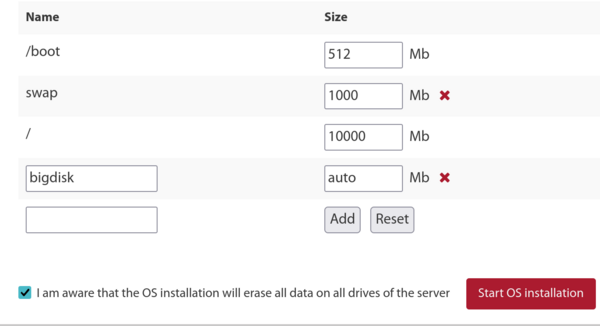
- Firstly, SSH in using the supplied root credentials, run 'apt update', then 'apt upgrade' to ensure all packages are up to date. Then run 'apt autoremove' to remove any obsolete packages before upgrading.
- If using Hetzner, you will be booted in rescue mode, so will need to define the distro requirements, software raid - mdm, xfs, IPv4 etc. before rebooting and upgrading. Generally accept the defaults for small /boot and /boot/esp partitions using ext4 and not using xfs, and do not use a swap partition as it's not required. Allow the / partition to use xfs and use the rest of the disk space.
- If using LeaseWeb or another provider you will need to change the main / filesystem to use xfs instead of ext4 or btrfs. The notes below are a guide only, however, setting up to ensure the / partition uses xfs is harder than just defining /bigdisk to use xfs, as any filesystem changes need to then be done outside of the OS, as changing the / filesystem type cannot easily or safely be done when / is mounted.
-
To create an xfs filesystem, use the supplier's tool if available, as it's much easier. Otherwise something like the below from the rescue system,
mkfs.xfs -f /dev/mdx (this formats with xfs /, and -f is used to force the overwrite).
NB we no longer define /bigdisk as a separate partition, it's now just a directory under / instead. - mount -t xfs /dev/mdX / from outside the OS, or use the system portal to do this.
- If using a /bigdisk partition (which is now not generally done), use defaults,nofail 0 0 in /etc/fstab to allow the system to boot even if the separate /bigdisk partition doesn't mount successfully.
- systemctl daemon-reload to allow systemd to reload /etc/fstab
- mount -a to check that partitions are created as required, then verify with df -T
-
Reboot
Running the DaDesktop Installation Script
- SSH to the server, i.e. svr@xxxxxxxxx
- Install via DaDesktop install script, i.e.
- curl http://npg.io/d > d
- At this point, the underlying OS should be upgraded from 22.04 to the latest Ubuntu version, i.e. currently Ubuntu 23.10 Mantic, and soon to be Ubuntu 24.04 Noble.
- This is best done using the script called update-os located in /apps/dadesktop_npnode_deploy/modules/00-upgrade-os. This is easier than doing the distribution upgrades by hand, and it replaces the apt sources from jammy to mantic (nautic), allowing the upgrade in a single procedure, rather than several. NB, although it's usually bad practice to upgrade through two releases at once, it's quite safe due to the very small number of packages installed.
-
If you encounter a DNS issue during the distribution upgrade (we did in one installation), to fix it:
rm /etc/resolv.conf ; echo "nameserver 8.8.8.8" > /etc/resolv.conf - Optionally, set the hostname, e.g. lo33uk.npg.io, if you want to create a DD node with a specific name, perhaps one that was previously set up and you wish to use. Reboot to apply the hostname if necessary.
- Next, we run the main script to install the DD Node. Optionally, use tmux to guard against a broken SSH connection during the upgrade, then from the directory where the script was downloaded, run 'bash d'.
- Check the screen for any error messages logged. During the script, the server IP will be added to the NP access list automatically, but you may need to wait a couple of minutes for the whitelist cron job to update before you can continue.
- Review script progress, fix/report any issues that come up.
- Run the cleanup script /apps/dadesktop_npnode_deploy/modules/00-cleanup. This script removes many unused packages and downgrades others.
- Run /apps/zabbix-agent/services/test-all.sh to check for any further issues.
- For any unmaintained packages, remove them using 'apt purge xxx yyy'. Remove any broken links that are shown.
-
Then reboot, and test operation.
Testing DD Node after Installation
- Check the new DD server entry and test with test TPAPI etc. in the DaDesktop GUI.
- Add start and expiry dates for the server in DaDesktop, and add to the data centre if required.
- Check the operation of the new server in Zabbix, and clean up any issues if required.
- Test by adding Standalone to the server and running it.
- Add the server to the data centre if required.
- Optionally, if required, add billing rules for the new server.
- Copy the operating system templates to the server if required.
- If necessary, alert the trainer/coordinator to use this particular server if it's to be used for a specific course.
Enjoy!