Resizing the disk of a Fresh-start desktop in a course
If an existing Fresh Start machine doesn't have enough disk space, you can easily resize it to add more space.
First off, you'll need to stop the Fresh-Start machine.
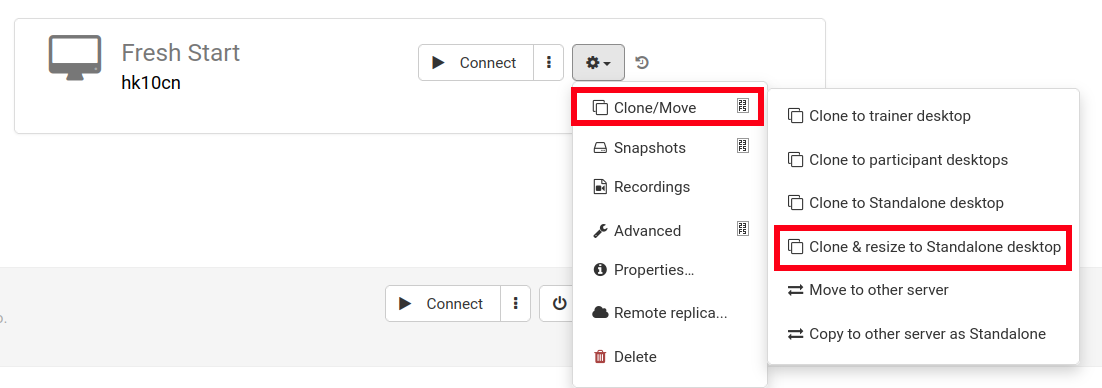
Then Clone & Resize to Standalone as shown below (create an organisation if you don't have one yet)
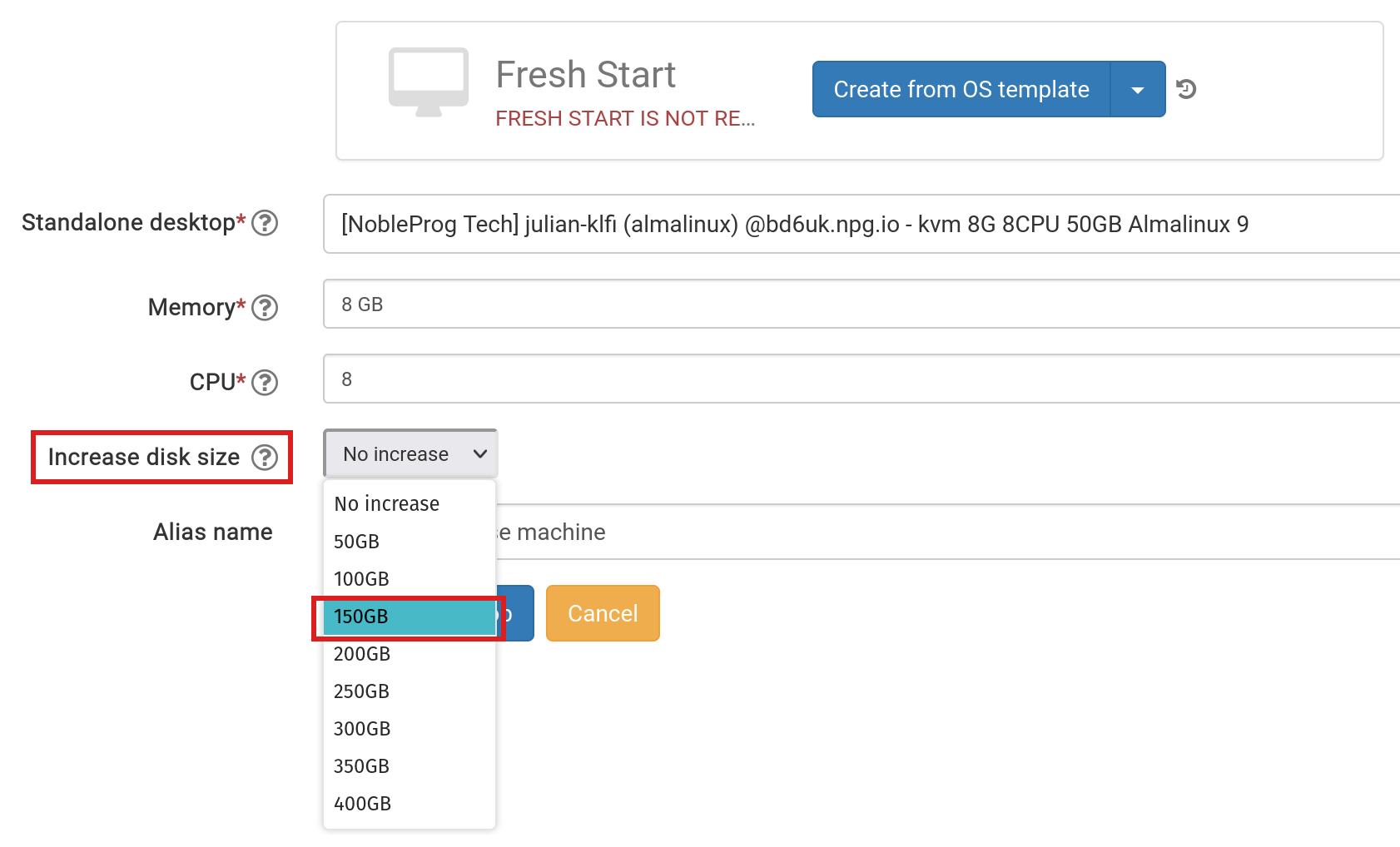
In this step, increase the disk size as needed and submit.
Head to the 'Standalones' link at the top of the page to find it and make sure it's there.
Remove the Fresh-Start machine from the course using the 'Delete' button.
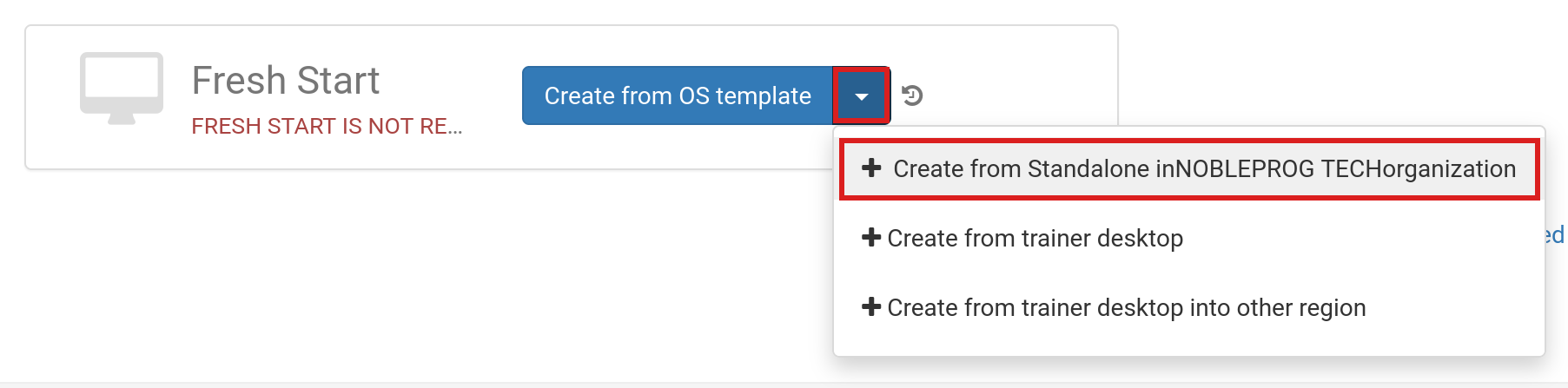
Click the 'Create Fresh-Start from my Standalone' button
In the 'Create from Standalone' dialog, you can also opt to increase the disk size if you didn't do so earlier.
Add an Alias name if needed, then click the 'Create Desktop' button.
For standard DaDesktop Linux and Windows OS templates, the OS will be extended/grown automatically. Note that AlmaLinux standard templates configure their default partitions differently, so you'll need to follow some extra manual steps as outlined below.
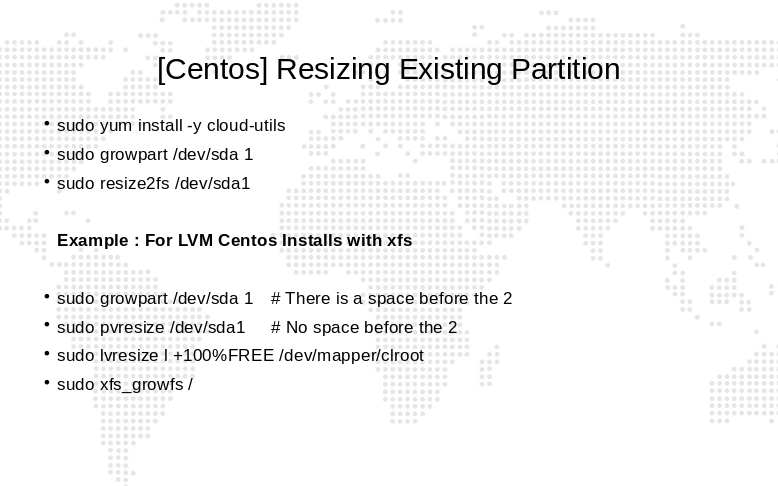
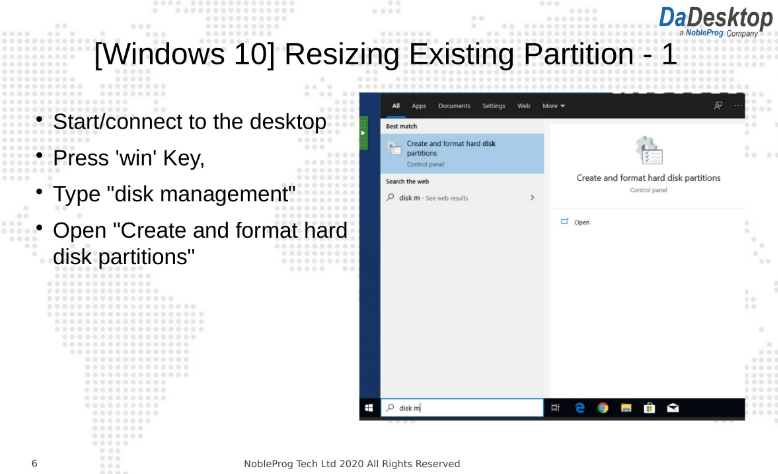
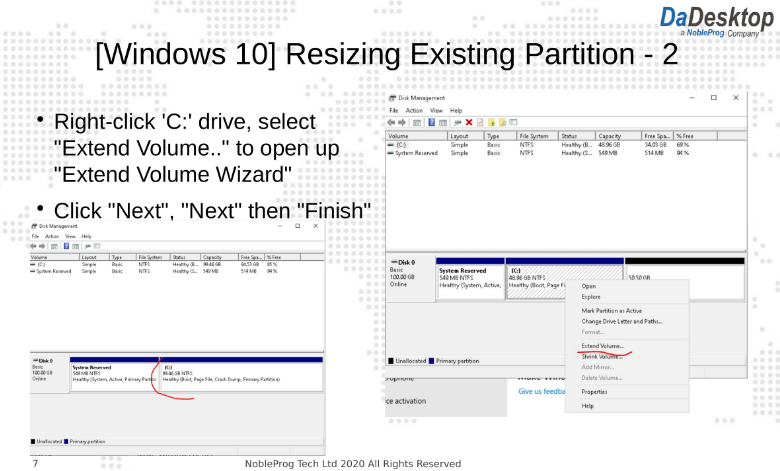
For custom OS templates, the automatic extension of the partition(s) may need to be done manually; the steps to follow are shown below.
For custom OS templates and AlmaLinux standard templates, follow the steps below to extend your partition(s).
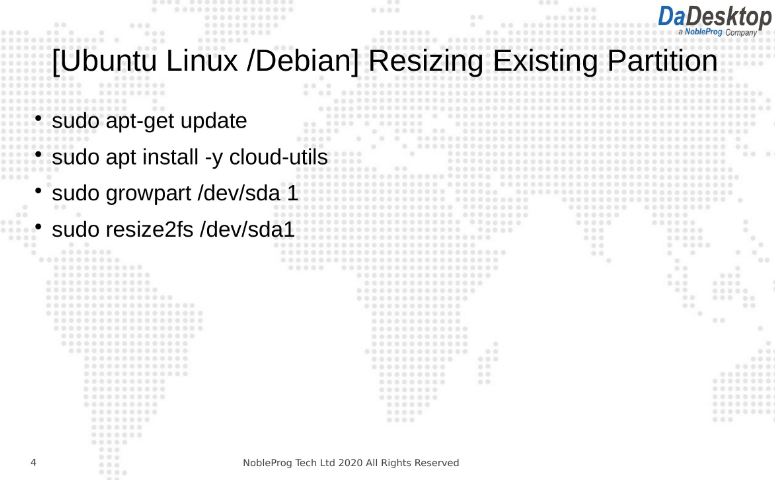
Follow the instructions to modify your desktop partitions:
- Open a terminal/cmd window
- Enter the commands as below