Hyper-V Server
UPDATED April 2024
Most apps work a treat when prepared in the Fresh Start machine with DaDesktop (DD). But a couple of applications, due to the cloning process, don’t behave as you’d expect – they need a few extra steps to get them working properly.
System Details
- Hyper-V Server 2019 and above (other versions will probably show the same behaviour)
- Installed using Windows 10 / Win 2019 Server template
Fresh Start Fix Notes
-
Please note this is a generic guide to fixing this application when using it within Fresh Start. Steps may be different depending on your exact set-up configuration.
-
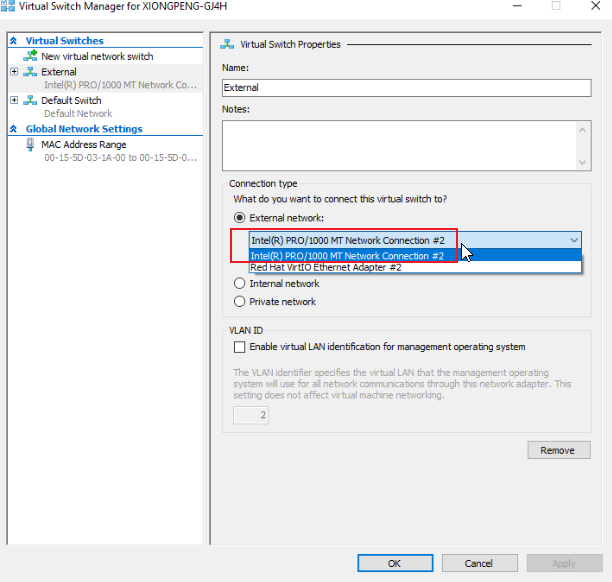
Here’s the gist: fix on Fresh Start as detailed below. Hyper-V has a drama with duplicate MAC addresses on the External switch when cloned from the FreshStart machine, so we either pick the second pre-configured Intel network connection or yank the external switch from the FreshStart machine before cloning – I’ll walk you through that below.
Fix process
1. Open Hyper-V Manager, right-click and select Virtual Switch Manager.
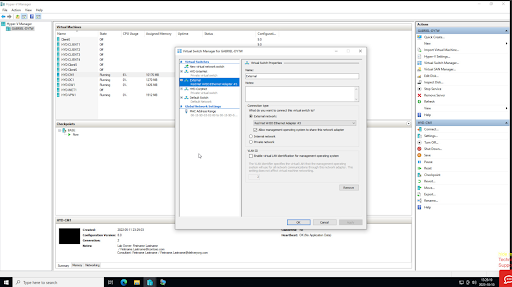
2. In the Virtual Switch Manager, choose the 'External' switch, then pick the Intel Pro /1000 network connection. Note: this option’s only available with newer Windows 10 templates (v71 or later). Hit OK, save the config if prompted, then close Hyper-V Manager.
3. Finish configuring the FreshStart machine as needed, then shut down the machine from inside the VM. Wait until it’s completely stopped. After that, clone the FreshStart machine to the Trainer and Participant’s machines as required.
The Hyper-V server should now run properly on the Trainers and Participants’ machines. If you skip this, participants might see each other’s machines instead of their own, because the cloned external network card creates duplicate MAC addresses on the External switch when cloned from the FreshStart machine.
If you still run into trouble, get in touch with DaDesktop Support through the chat app – we’re happy to help.