Customised OS Template (Windows)
An organisation administrator can create a Customised OS Template which can be used for instantiating remote desktops. This is useful as well to activate your own licence on your OS.
These steps are essential to create an image successfully. Tread carefully.
Important:
About Disk Partition
1. Customised template requires only one disk partition, or two partitions: one is the EFI/Boot partition and the other is the system and data partition.
2. LVM partition is not supported, please do not use.
3. The wrong partition scheme will cause disk auto-resize and machine naming features to fail.
Windows
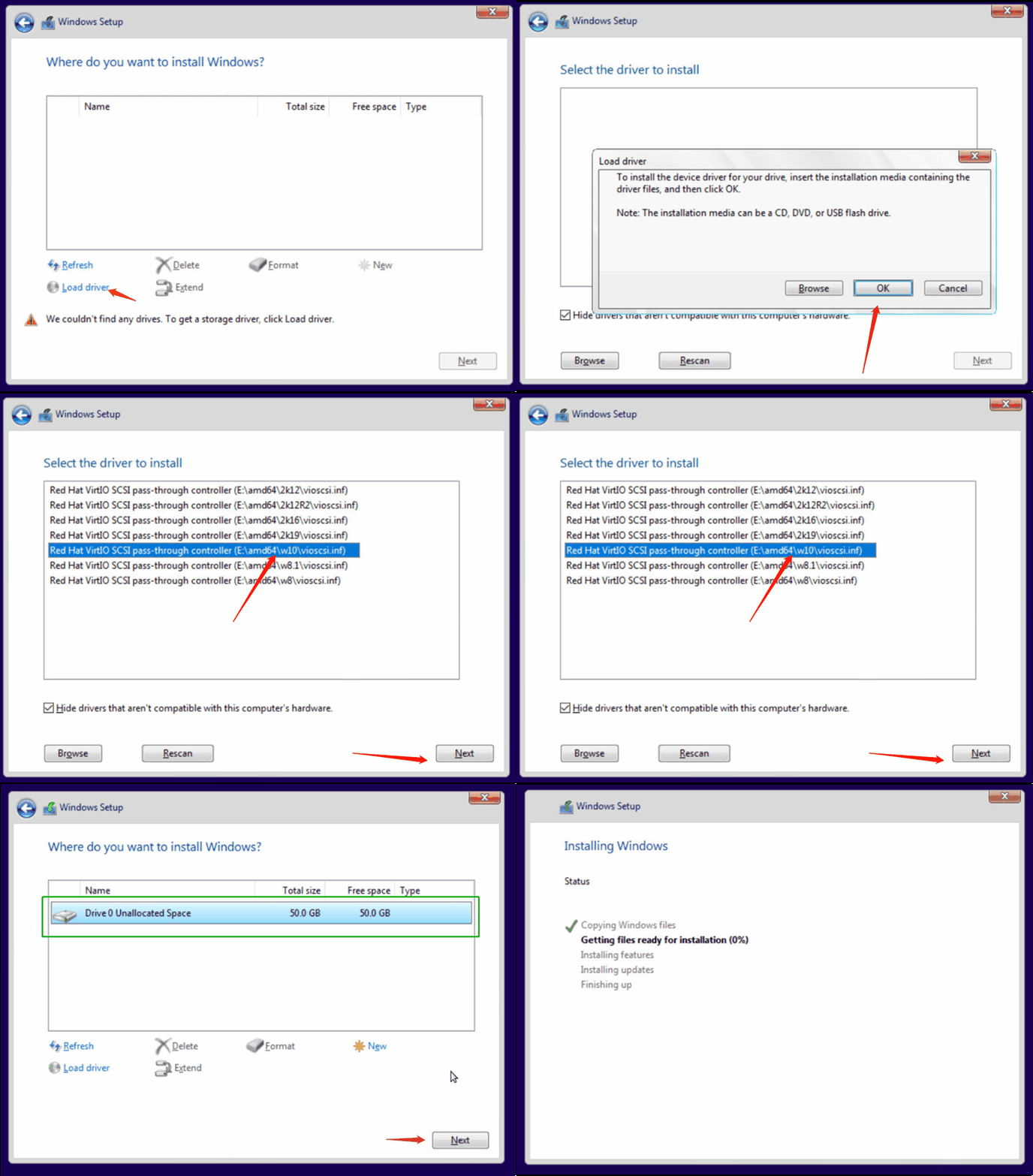
1. Install "Red Hat VirtIO SCSI pass-through controller
When asked "Where do you want to install Windows?", click "Load drivers", then select the right driver. After that, you'll see the storage drive.
2. Initial Setup
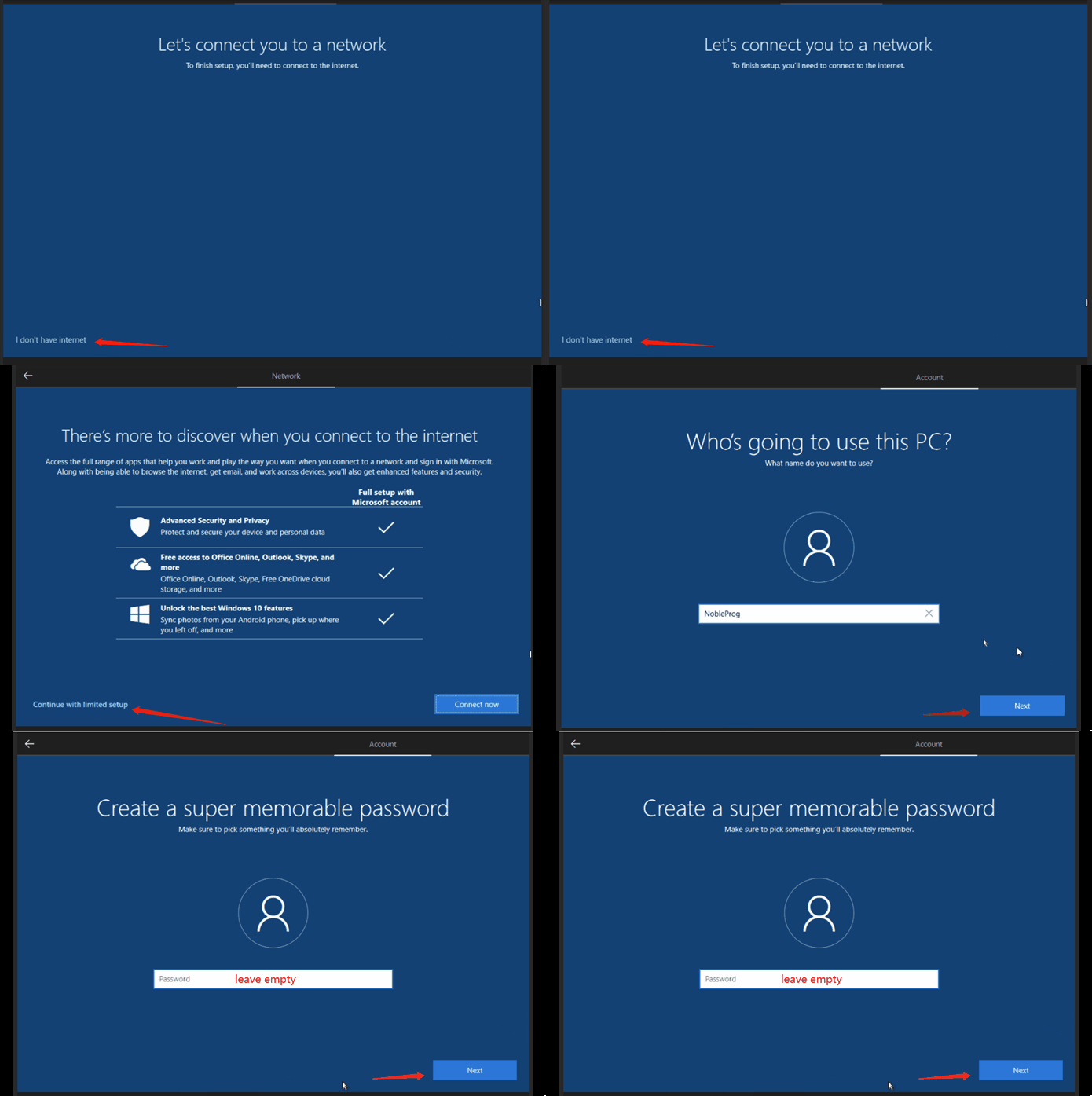
Click I don't have internet when asked "Let's connect you to a network"
Click Continue with limited setup when asked "There's more to discover..."
Any username but no password
3. Install Virtio-win drivers and guest agents
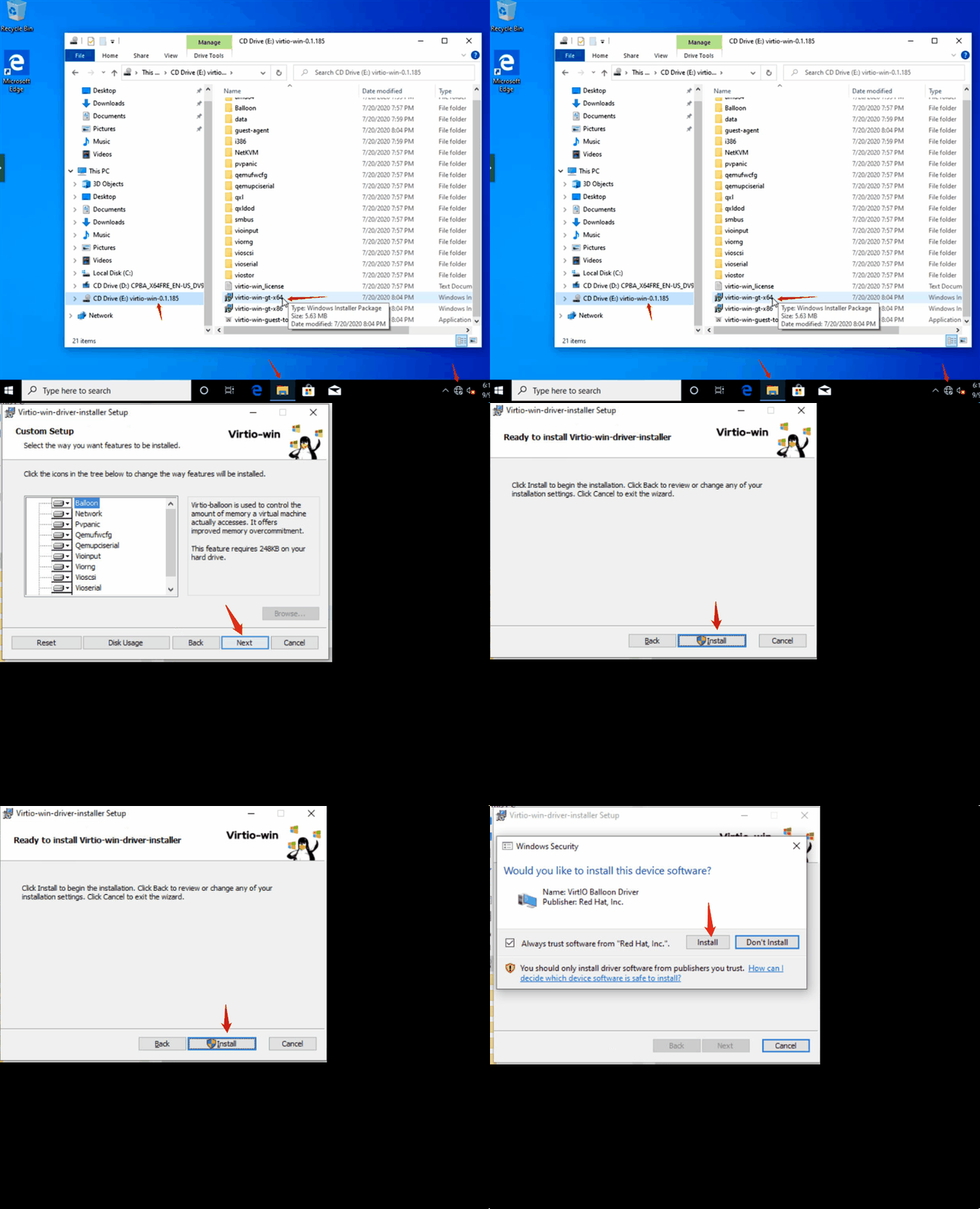
Once the machine has started and you're logged in, go to CD Drive E and run Virtio-win-guest-tools to install the virtio drivers, spice vdagent and qemu guest agent. Click Next and OK to finish installation.
4. Disable Hibernate
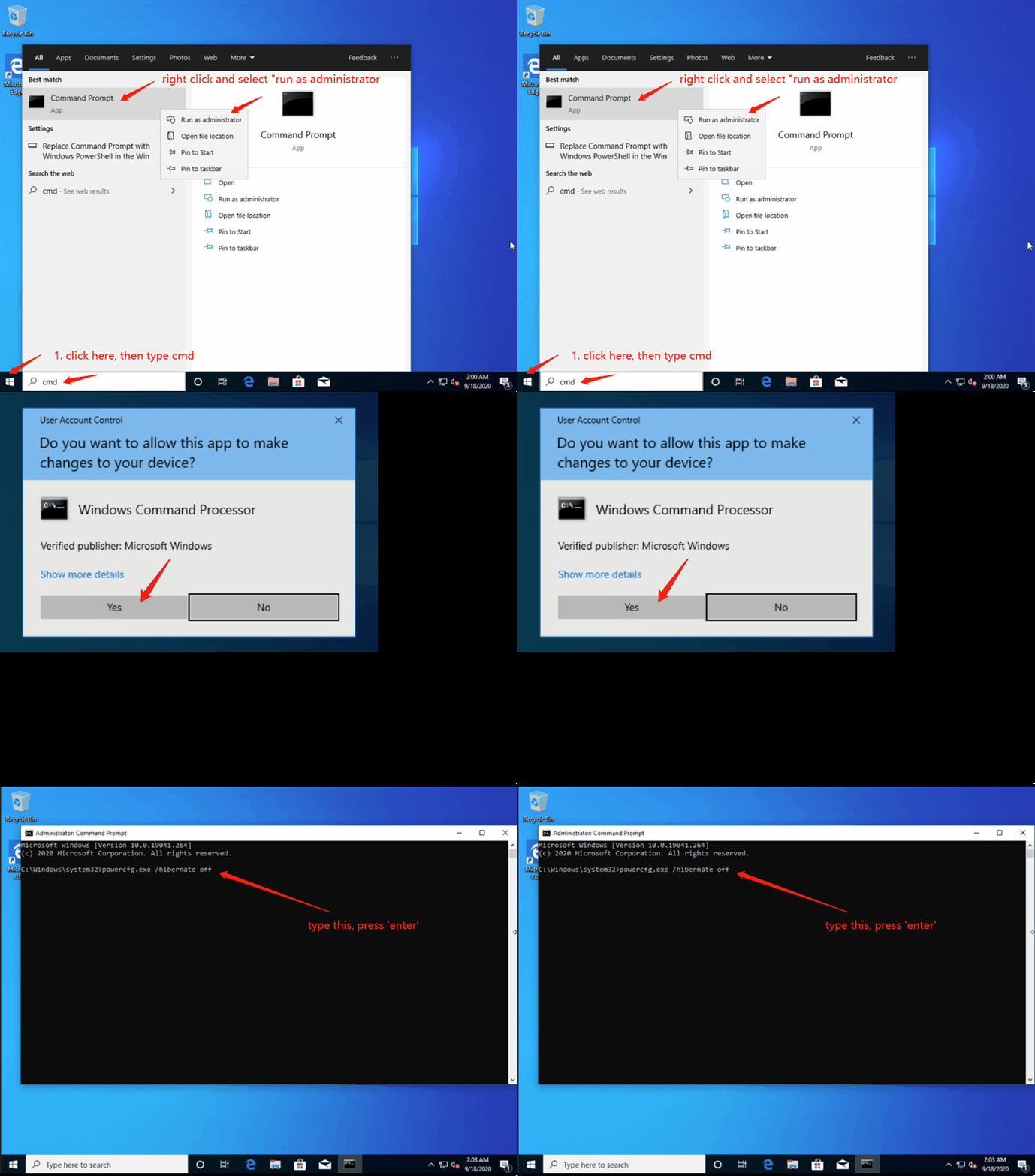
Open "Command Prompt" by right-clicking and selecting "Run as administrator". Type "powercfg.exe /hibernate off" and press Enter.
5. Enable Shutdown/Restart Windows 10 without Any Prompts
In the Registry Editor, navigate to this key HKEY_USERS\.DEFAULT\Control Panel\Desktop.
Create a new String Value named AutoEndTasks and set its value to 1.
6. Check if the required service exists and set to "Automatic Start"
- Spice-Vdagent : for support of qemu vnc clipboard
- BalloonSerivce: for guest memory usage stats


7. Install and configure Tightvnc to allow proper VNC connection
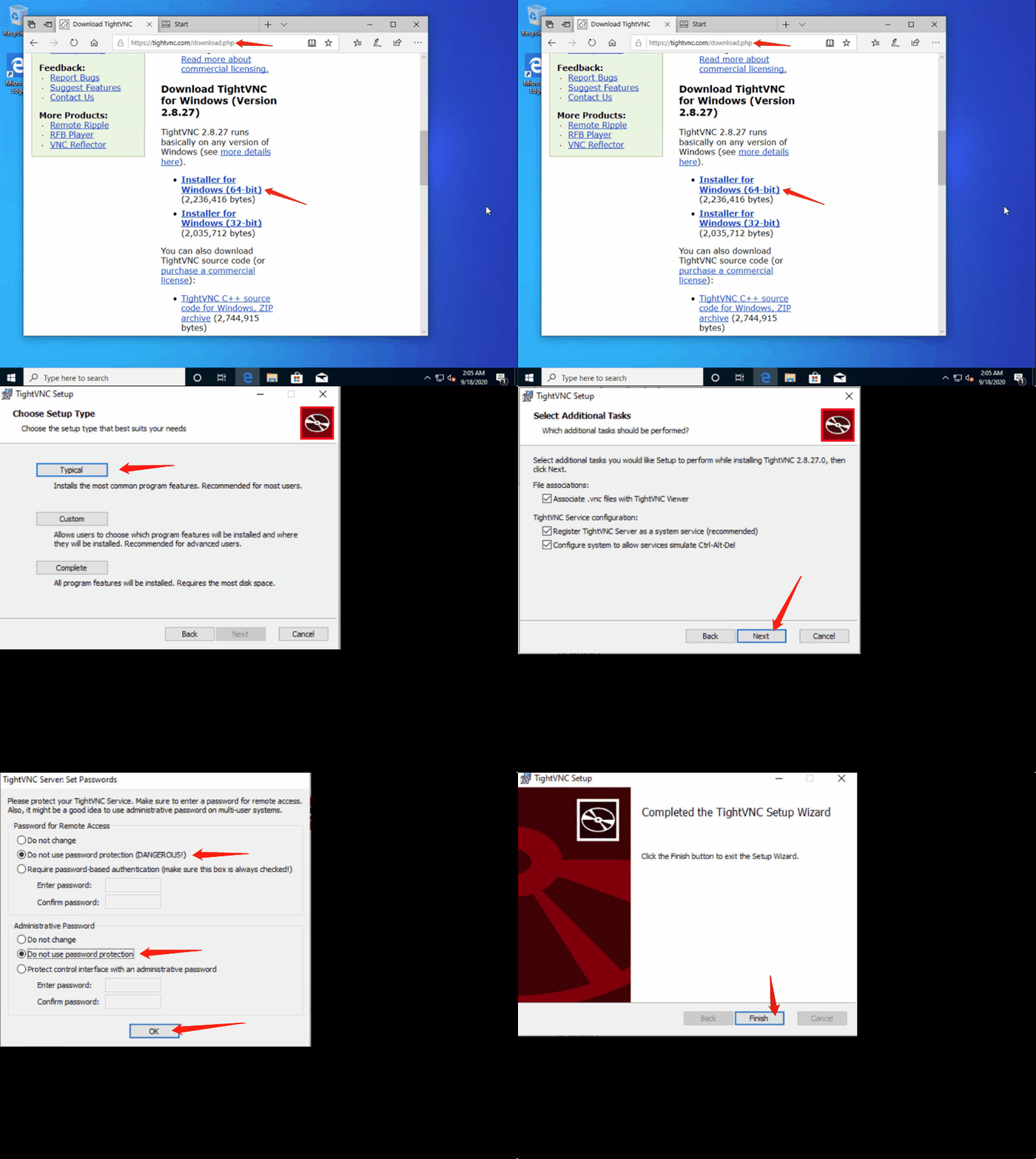
Go to https://www.tightvnc.com/download/ to download the TightVNC for Windows installer.
Install it, then disable authentication once the installation is complete.
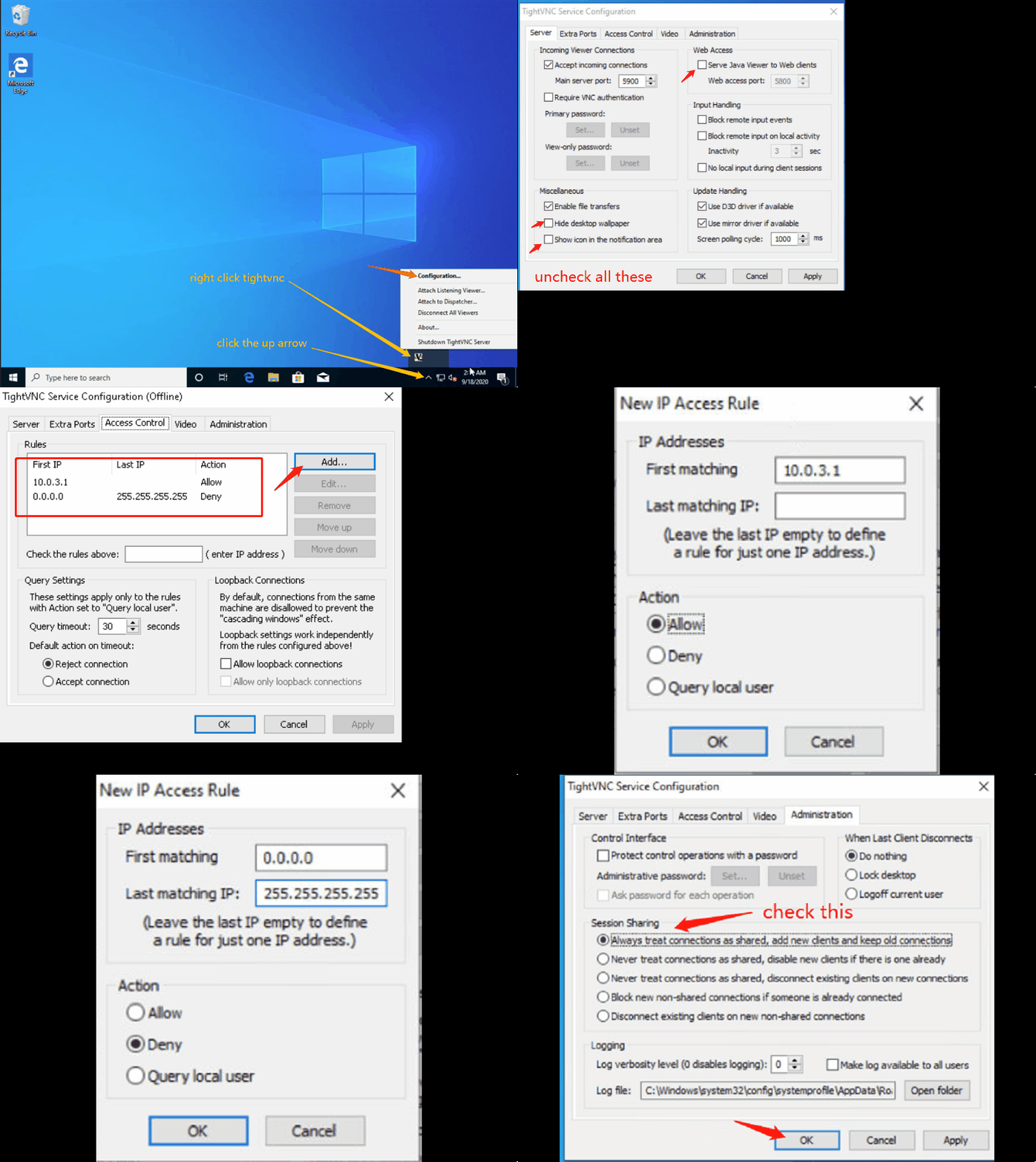
Open "TightVNC service configuration" and configure it
8. Enable Shared-drive
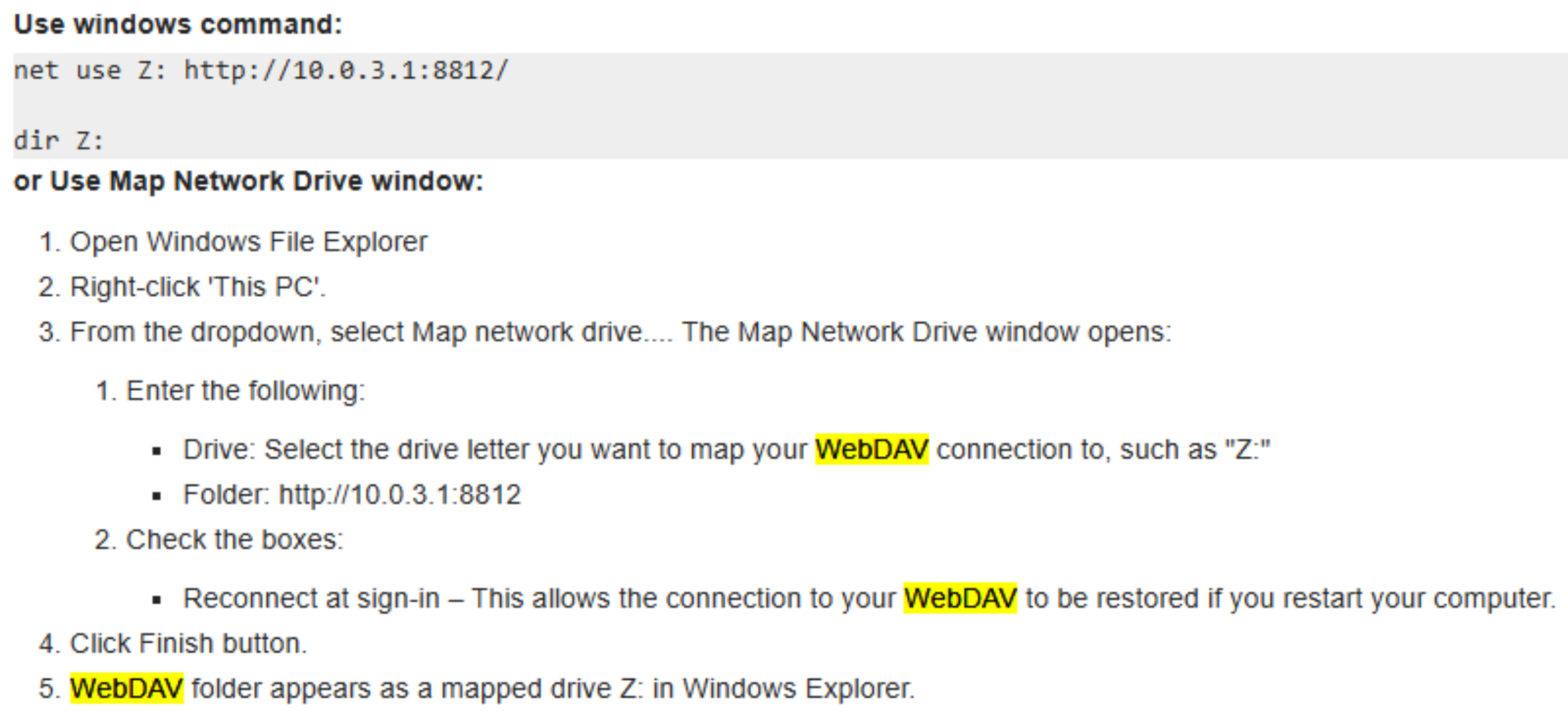
Shared-drive enables cloud desktops to share files with each other during a training course, or between a user's own PC and the cloud desktop. This feature relies on WebDAV file sharing technology. You'll need to map the hard drive before using it. See the screenshot below for how to do this.
9. Shutdown your Windows properly
Click the Windows icon at the bottom left, then go to Power > Shut down.
Please Note
To add extra optional features such as
- DDWebdav to allow Trainer content folders to be synchronised to each participant's machine,
- or DDUpload – to easily upload files to a DaDesktop machine;
Please contact DaDesktop Tech Support.