Resizing Disk, CPU and Memory
Trainers can adjust the resources originally provisioned for the Fresh-Start Desktop. This comes in handy when you realise the course needs more CPU, memory, or storage to support extra programs and/or software.
To change these settings, the Fresh-Start desktop must be stopped first. Click the gear icon and choose either "Stop" or "Force-Stop".
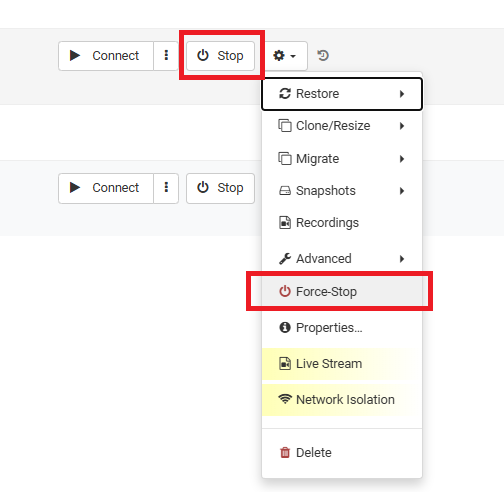
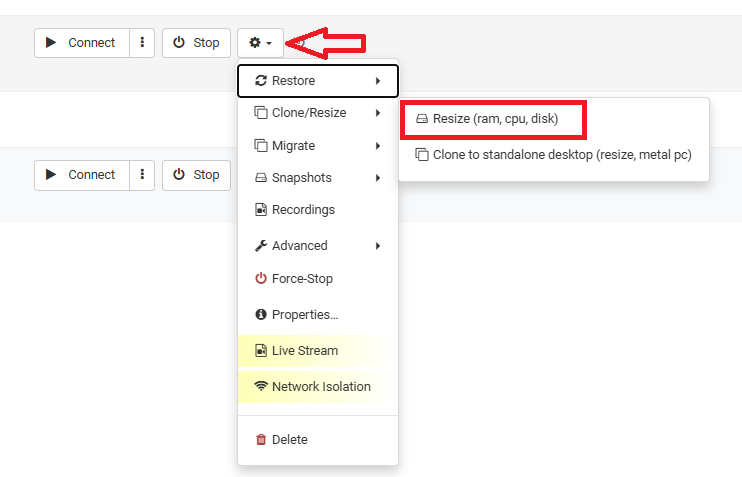
Once it's stopped, you can resize the allocated resources. Select the gear icon, then go to advanced > Resize (ram, cpu, disk).
After selecting that, a Resize form appears, letting you re-allocate the CPU, RAM, or storage your desktop needs. The form shows the maximum allowed for each.
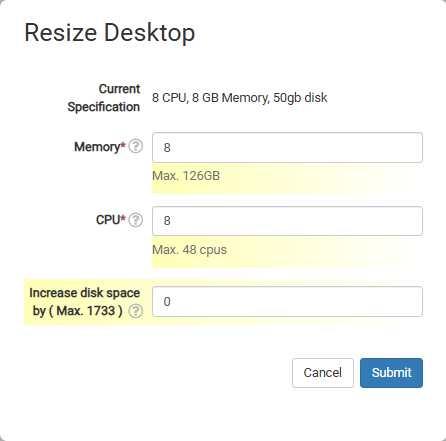
Keep in mind these changes will affect the desktop's cost, but it's best to allocate whatever's needed so the course runs smoothly.