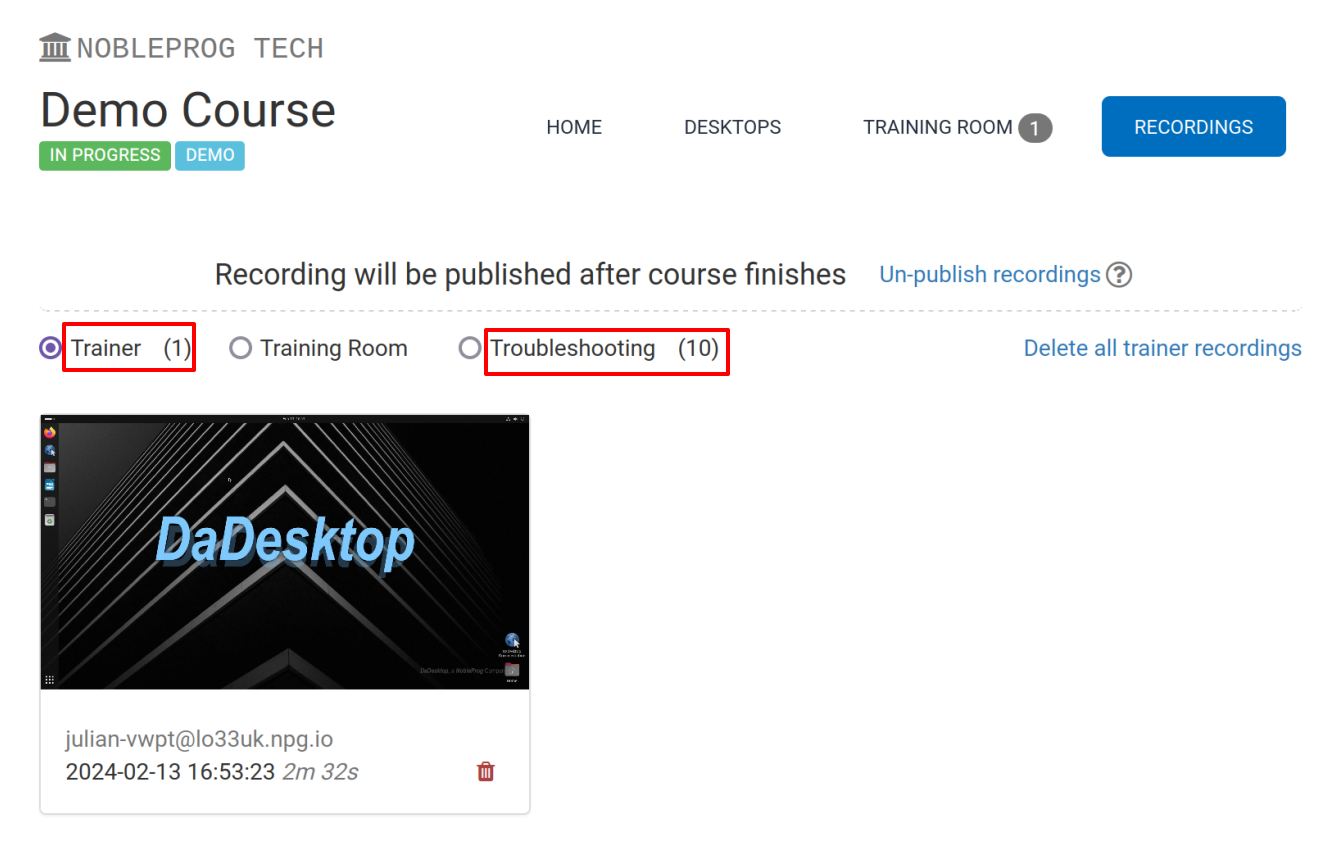
Trainer Recordings
DaDesktop offers several different ways to record desktops and course sessions. These include Troubleshooting recordings, Training Room recordings, and Trainer recordings.
Trainer recordings capture the Trainer's DaDesktop machine. Trainers can commence session recordings of that machine as follows.
- Click the three vertical dots to bring up a small drop-down menu. From the drop-down, choose 'Connect (with session recording)'
-
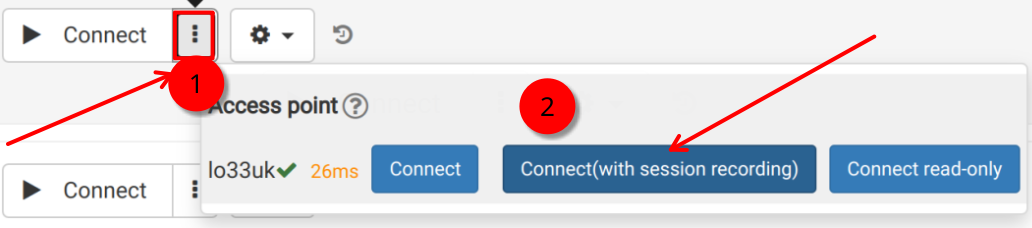
An audio/video recording of the Trainer machine is captured, but it can't be viewed until after you close the virtual classroom, at which point the recording is generated. Note: As a SuperAdmin user, there's an extra menu option to view live recordings while they're being recorded.
- To view and edit the recordings, click the cog and then the Recordings menu.
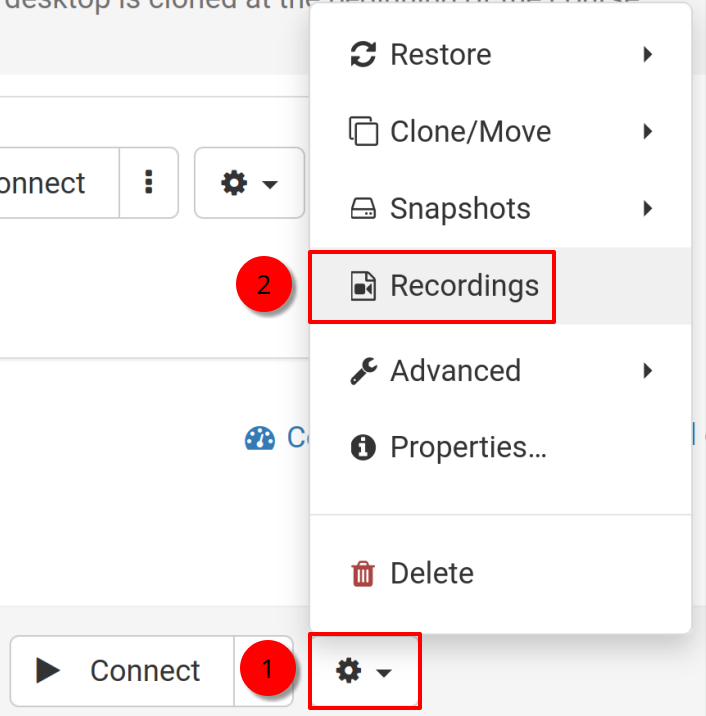
Recordings
Trainer recordings of their machine can be viewed in two ways.
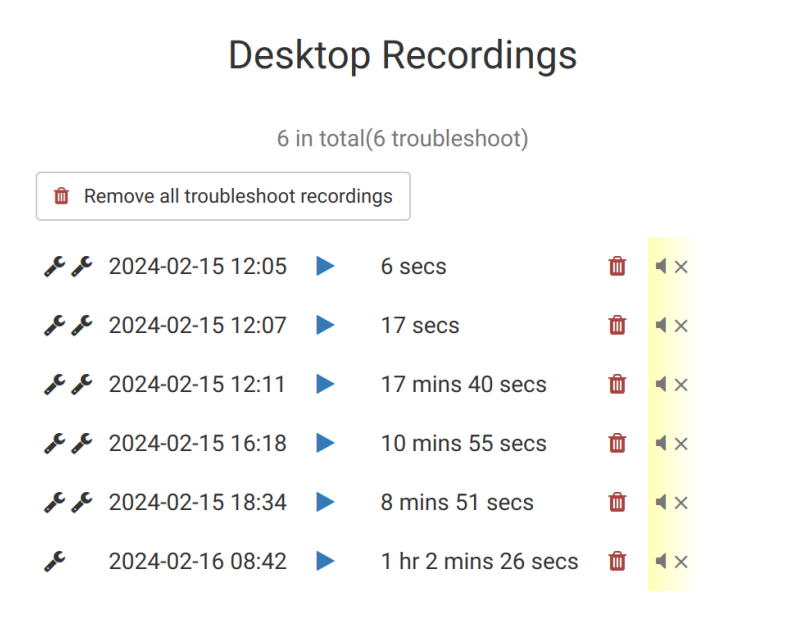
- You can view recordings from the Recordings menu, as described above. Recordings can be played back and deleted as needed. The double spanner icon indicates 'Troubleshooting Recordings' (these are created automatically and aren't intended for presentations, but for troubleshooting whenever required).
2. In the 'Recordings' tab of a course, you can view Trainer recordings, Training Room recordings, and Troubleshooting recordings.