Port Forwarding
Port forwarding lets you expose one or more ports of a cloud desktop to your local network or the internet. It's typically used alongside the Remote Desktop Protocol
You can use this feature with DaDesktop Course machines (a private server is required), DaDesktop For Work, or Standalone machines. Just be aware that the interface might look a little different depending on the machine type.
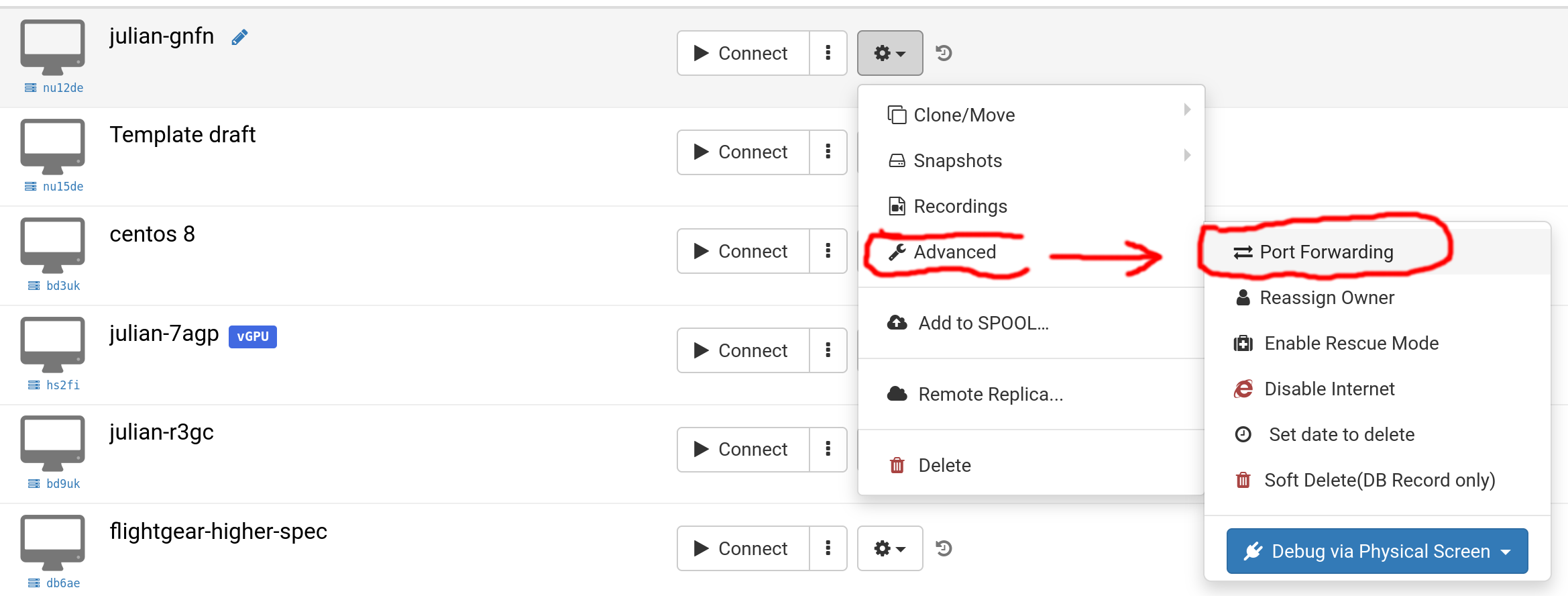
Select 'Advanced' then 'Port Forwarding',
Port forwarding can be set up using either automatic or manual allocation. Automatic allocation grabs the next available port on the server. In most cases, auto allocation is the simpler option, though manual allocation lets you pick each external port yourself, from the range 10000–65500. If you've already added manual port forwards, those remain and can be edited as needed.
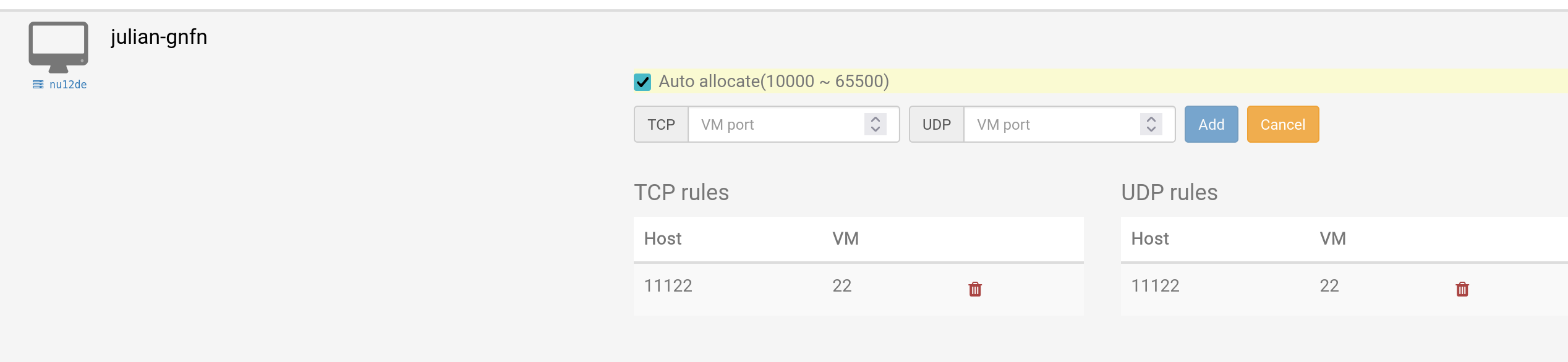
Auto Allocation
This screenshot shows auto allocation, along with a previously added manual port forward that uses port 11122 on the host and port 22 on the VM.
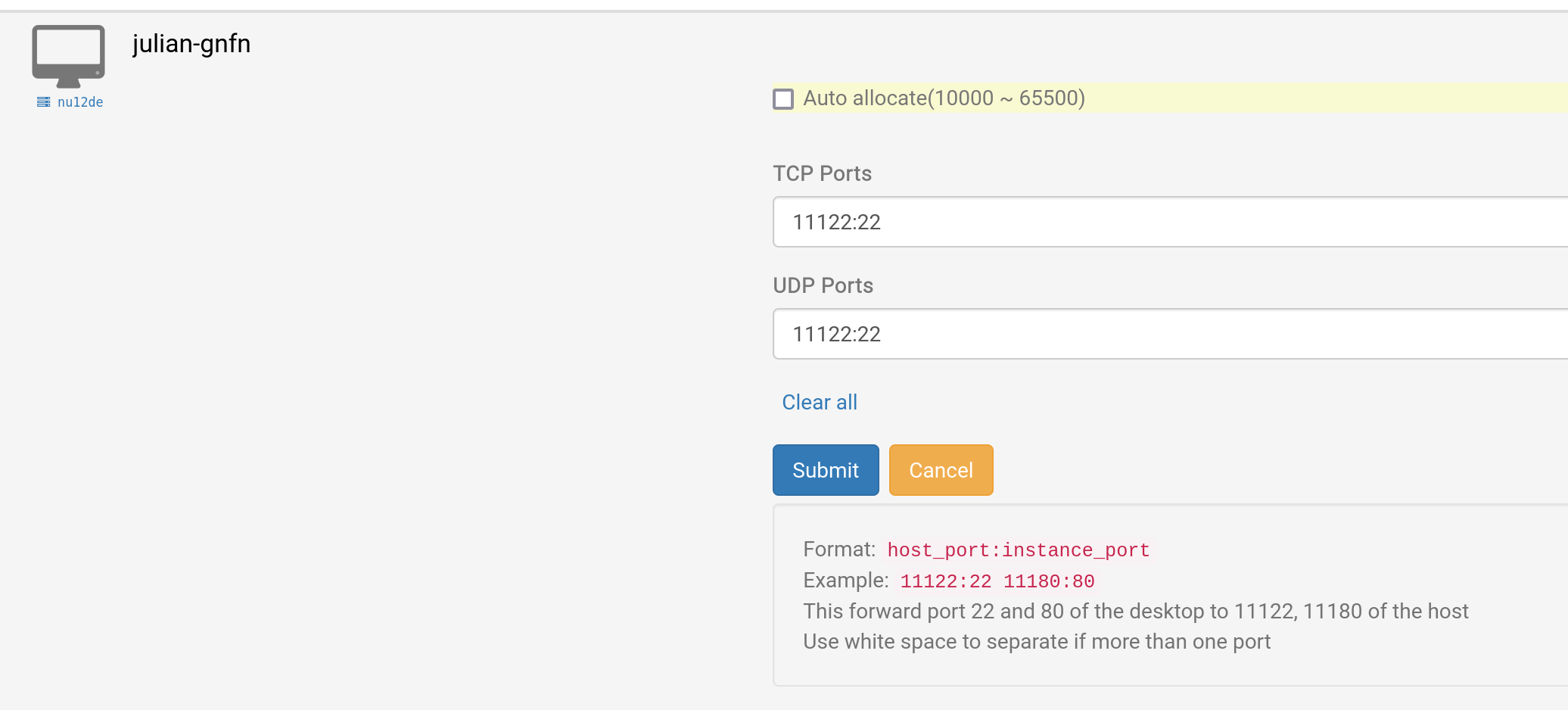
Manual Allocation
This example demonstrates using port 11122 for both TCP and UDP port forwarding to the cloud desktop VM's port 22 for SSH. You can choose different UDP and TCP ports if you need to.
Example for Windows RDP
This example sticks with the original manual allocation method, but you can of course use auto allocation as well.
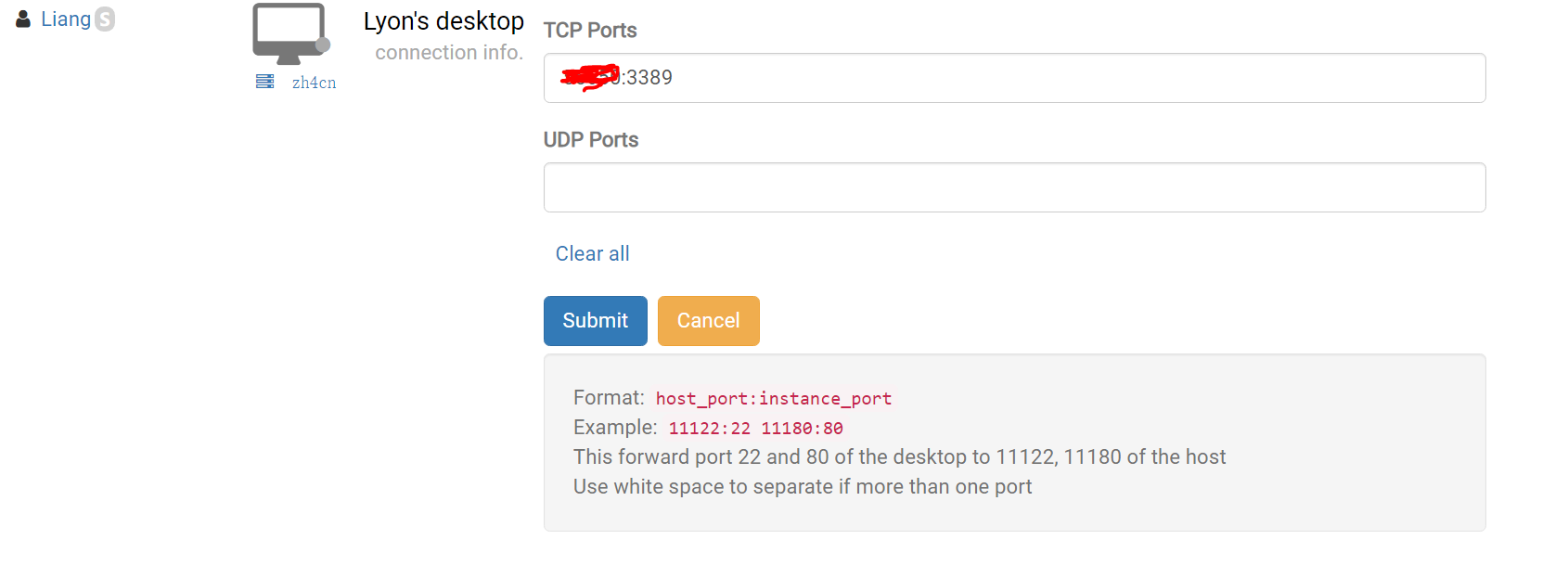
1. Locate your DaDesktop desktop, click "Port forwarding", then set your TCP ports for the remote connection. This means entering your external port number followed by 3389 (for example, 66666:3389). Make a note of your port number; if you forget it, you can simply click Port forwarding again to check.
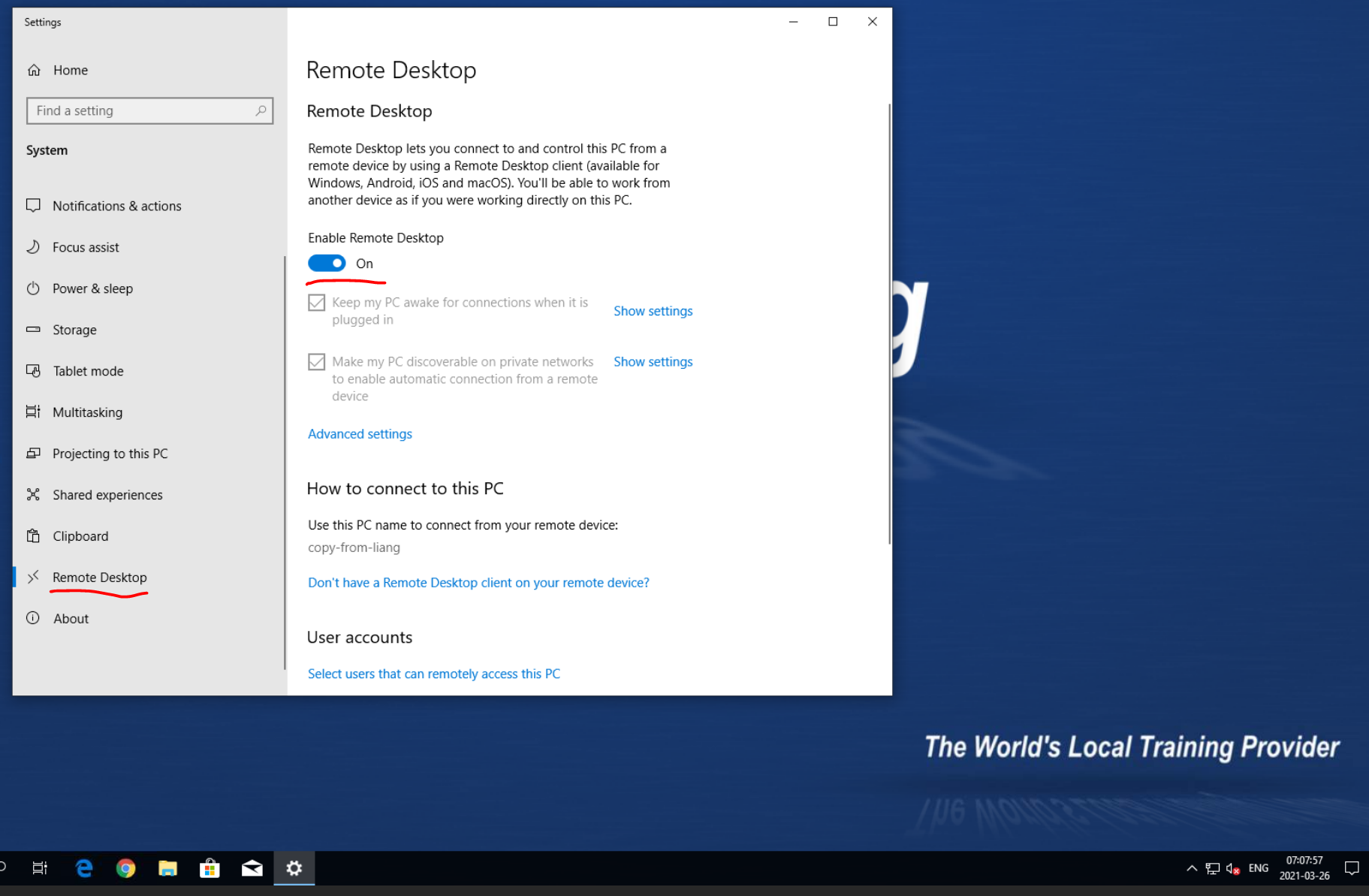
2. Submit and then set a password within your Windows DD machine, then click "Enable Remote Desktop"
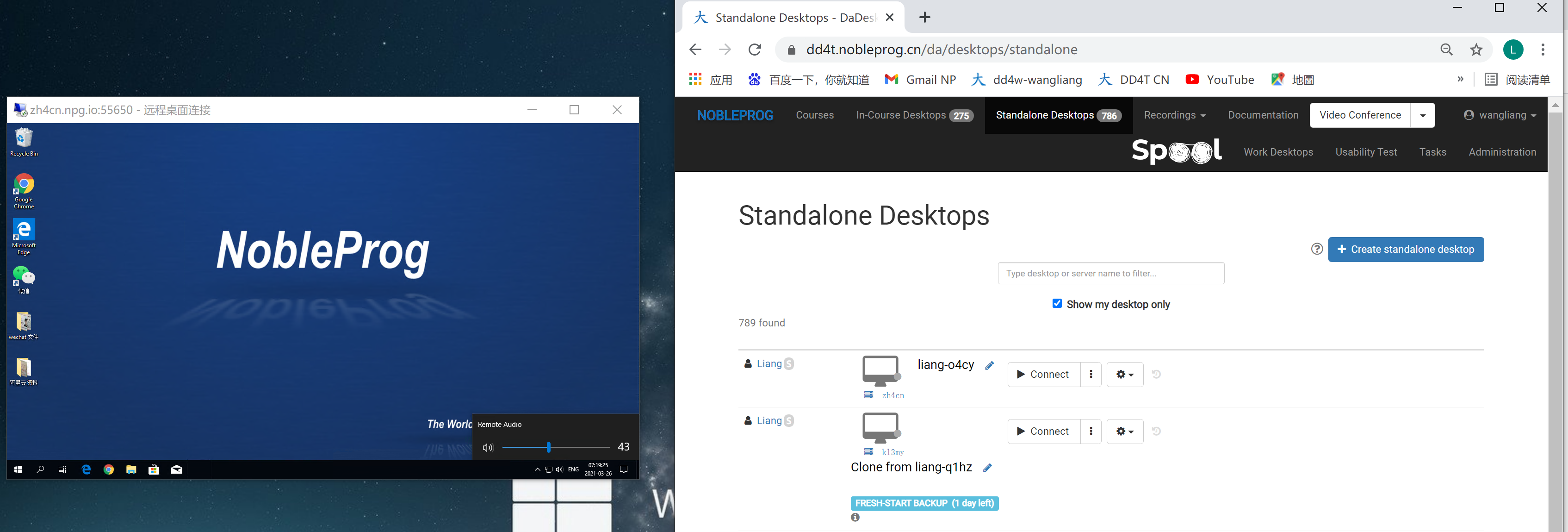
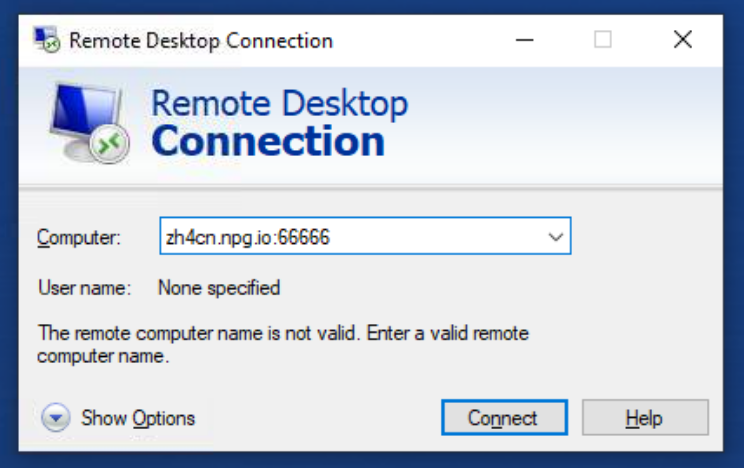
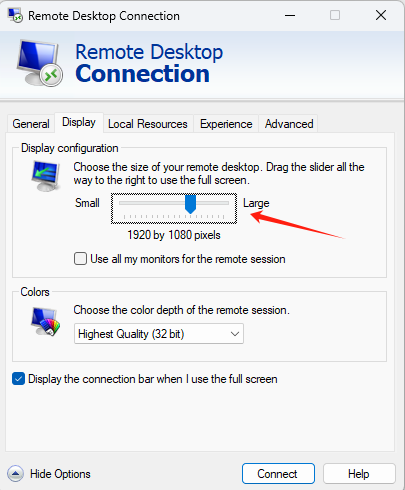
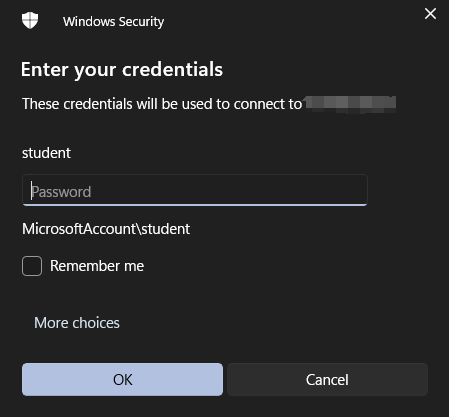
3. Back on your Windows device, open Remote Desktop and enter the server name plus the TCP port. (In this example, I use zh4cn, so it's zh4cn.npg.io:xxxxx.) In 'Show options', you can also choose the "resolution" of the remote desktop window.
3.1 To log in to your DaDesktop remote desktop, by default
"You should reset your username and password in the machine first."
Then connect to the remote desktop.
4. Then you'll have a remote desktop that uses the DD template and your own device's sound card, and you can also copy-paste or output documents with ease. (The small window on the left-hand side is the DD remote desktop with audio.)